Account Security
-
Root user always has a user ID of 0.
-
Assigning a User an ID of 0 will grant them root privileges.
-
Accounts for system services should have UID's of less than 1,000.
-
New users in the standard user range can be created using
useradd -
New users can be created in the system services account range using
useradd -r -
authentication logs can be viewed by running the
lastcommand.lastbwill show failed login attempts. -
The
lastcommand logs are found in/var/log/wtemp -
logs for
lastbare stored in/var/log/btemp -
Other authentication logs can be found in the messages, syslog, secure, and auth.log files in the
/var/log/directory. -
Sometimes you may want to lock a user account. Maybe the account is compromised, a user no longer needs access, or it is a dedicated account for a service or application. Here are a few ways you can disable logins:
-
Changing the final entry in a users line of the
/etc/passwdfile to nologin (default is /bin/bash) -
This can also be done by using the change shell command like this:
chsh -s shell account -
For example,
chsh -s /sbin/nologin foowould disable logins for the user foo. -
to re-enable logins, you would run
chsh -s /bin/bash foo -
Another way to lock an account is with the passwd command, although this only prevents the user from logging in using a password. For example, a user would still be able to log in using an SSH key.
-
To lock an account:
passwd -l foo -
To un-lock that account:
passwd -u foo -
PAM, or pluggable Authentication Module
-
PAM allows applications to use any authentication method (ie, fingerprint, yubikey, etc).
-
PAM modules exist for google authenticator and other Multi-Factor Authentication services.
-
PAM can be used for authentication for any application that supports it.
-
PAM files are stored in /etc/pam.d
-
Account password requirements can be set in
/etc/pam.d/common-passwordon Ubuntu/Debian systems or/etc/pam.d/system-authon Red Hat systems. -
PAM can also be used to prevent non-root users from logging in.
-
By adding
auth required pam_nologin.soto the top of/etc/pam.d/loginor/etc/pam.d/SSHdfile you can easily prevent system wide logins via those methods. -
After adding
auth required pam_nologinto either file, a file namednologinmust be created in the/etc/directory. If a user attempts to log in, the contents of that file will be displayed to them. -
To re-enable logins, simply delete the
/etc/nologinfile. -
Users will still be able to SSH into accounts by using SSH keys if the UsePAM setting in the SSH server's configuration file (
/etc/ssh/sshd_config) is set to 'no'. -
Account & password expiration dates can be configured in
/etc/login.defs -
pass_MIN_LENsets minimum password length -
pass_WARN_AGEnumber of days warning before a password expires -
Use Shadow passwords.
-
Encrypted Passwords are typically stored in
/etc/passwd, but can be viewed by all users. This means that attackers can simply copy the encrypted passwords and take their time cracking them. -
With shadow passwords,
/etc/passwdonly shows an 'x' as the users password. Instead, encrypted user passwords are stored in/etc/shadow, which can only be accessed by root. -
shadow passwords can be enabled using
pwconvas root. -
Shadow password format:
-
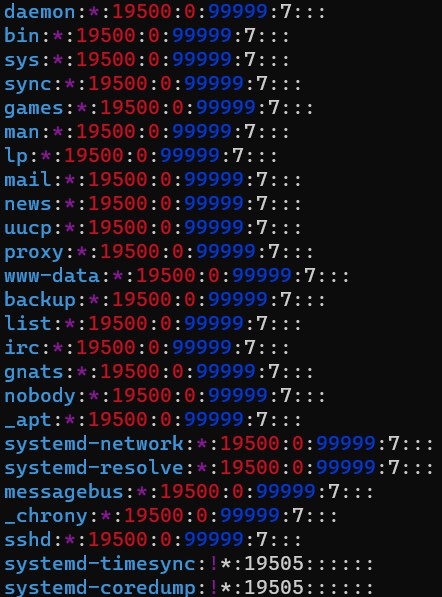
username:hashed password: days since epoch of last password change: days until user is allowed to change password: days before a password change is required: days warning before password expiry: days before account becomes inactive: days since epoch when account expires: reserved -
Screenshot of the /etc/shadow file from a debian VM:
-
chage: change user password expiry information. -
chage -l account:list account aging information. -
chage -M Max_Days: Set the max number of days during which a password is valid. -
chage -E Epire_Date: date on which the account will no longer be accessible in yyy/mm/dd format. Use -1 to 'un-expire' an account. -
chage -d 0: will force a user to change their password the next time they try to sign in. -
Centralized Authentication
-
Centralized authentication systems allow administrators to prevent accounts from performing any actions, including logging in if they become compromised.
-
If an attack gains control of your centralized authentication system, they control the device.
-
Common centralized authentication systems are freeIPA and LDAP.
-
Intrusion prevention
-
Intrusion prevention systems, such as fail2ban , monitor system log files. If too many failed login attempts are detected, their IP will be blocked.
-
fail2ban can be configured to unblock IP addresses after a set period of time, so if the "attacker" turns out to be a normal user that forgot their password, they will be able to regain access to the system.
-
fail2ban can be used for any application that writes login attempts to a log file. This includes SSH and many other common applications.
-
Disabling root logins
-
To display all accounts with UID of 0 (root access), run
awk -F: '$3 == 0 {print $1}' /etc/passwd -
This command works by using awk, which is a text processing command. The -F: option tells awk to use a colon as the field separator, as fields in the /etc/passwd file are separated by colons. The $3 == 0 part is a condition that checks if the third field (which is the UID) is 0. If this condition is true, awk executes the action in the curly braces, which is to print the first field (the username).
-
Any accounts with a UID of 0 should either be assigned a different UID or be removed.
-
/etc/securetty -
This is a config file that contains a list of TTY devices where root is allowed to login. Leaving it blank will prevent root logins.
-
TTY devices are 'local' terminal/console devices. Leaving a blank securetty file will not prevent remote console sessions, such as SSH.
-
Set the root account shell to nologin. This can be done by modifying the /etc/passwd file, or ideally with the chsh command.
-
Use
passwd /l rootto lock the root account password. -
To prevent root logins via ssh, add
PermitRootLogin noto the/etc/ssh/sshd_configfile. -
you can prevent other users from accessing the system via SSH by adding
DenyUsers account_namesto the same file. -
Run
systemctl reload sshd -
Securing System / Application Accounts
-
Use 1 account per service. For example, if you are running an nginx web server, run that server as its own nginx user.
-
Do not allow direct logins to system or application accounts.
-
Use
sudo -uto run commands as an application account. -
Deleting Accounts
-
When an account is no longer needed, use
userdel -r UIDto delete the account. -r specifies to delete that users home directory. -
Use
id account_nameto find an accounts UID. -
After deleting a user account, you can find leftover files that belonged to that user by running
find / -UIDandfind / -nouser